
User Screens
User Interface Screens of the Energy Zone System
The Energy Zone system offers a robust and intuitive user interface designed to simplify building automation management. Various screens provide easy access to system monitoring, configuration, troubleshooting, and control, enhancing operator efficiency.
System Monitoring Screen
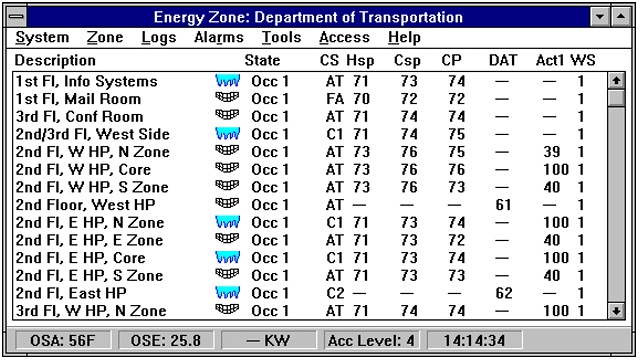
All system functions can be viewed and adjusted through the standard System Interface screen or, alternatively, the optional Dynamic Graphic Interface package. This flexibility allows operators to monitor real-time status and performance across all zones seamlessly.
Troubleshooting Screen
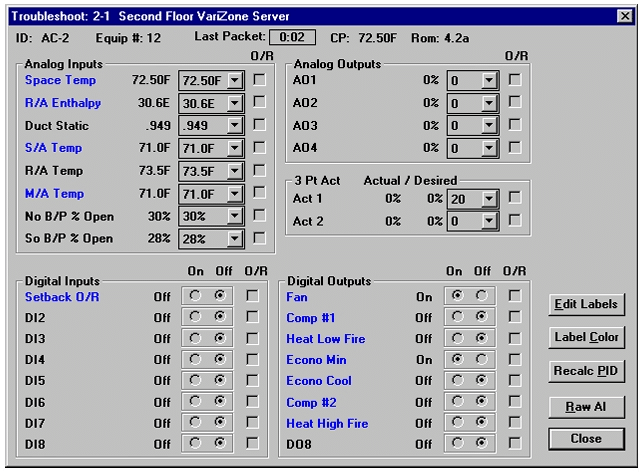
The Troubleshooting screen provides detailed insights into each zone’s inputs and outputs. Users can manually override any zone input or output directly from this screen, enabling precise diagnostic and control capabilities to quickly address system issues.
RSC Configuration Screen
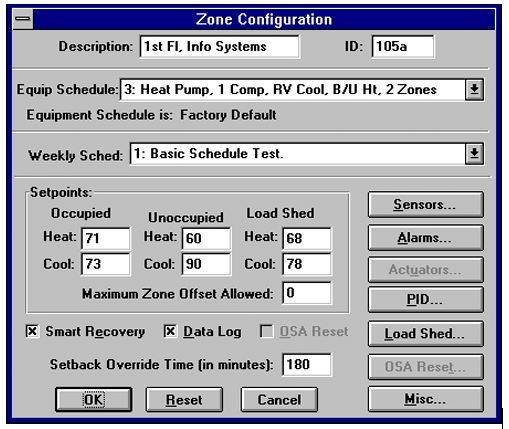
Individual zones can be configured independently on this screen. It offers comprehensive control over the parameters and settings specific to each zone’s Remote System Controller (RSC), streamlining the customization of HVAC and equipment operation.
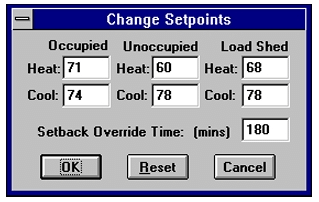
Change Setpoints Screen
By double-clicking any zone in the interface, the Change Setpoints dialog appears. From here, users can modify temperature setpoints and adjust setback override times, providing direct and efficient control over occupant comfort and energy management.
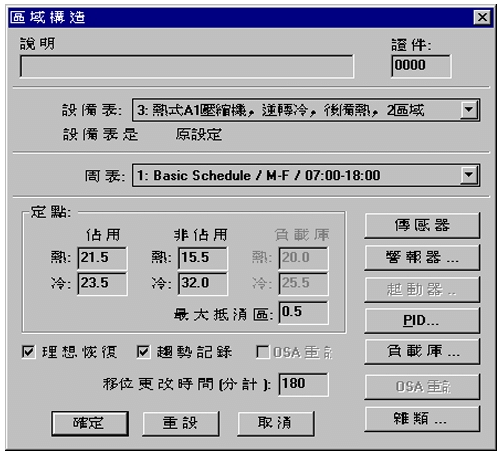
Chinese Language RSC Configuration Screen
When toggled to Chinese mode, all temperature setpoints automatically display in Celsius. Additionally, zone descriptions can be entered in Chinese characters, improving usability for Chinese-speaking operators and supporting international deployments.